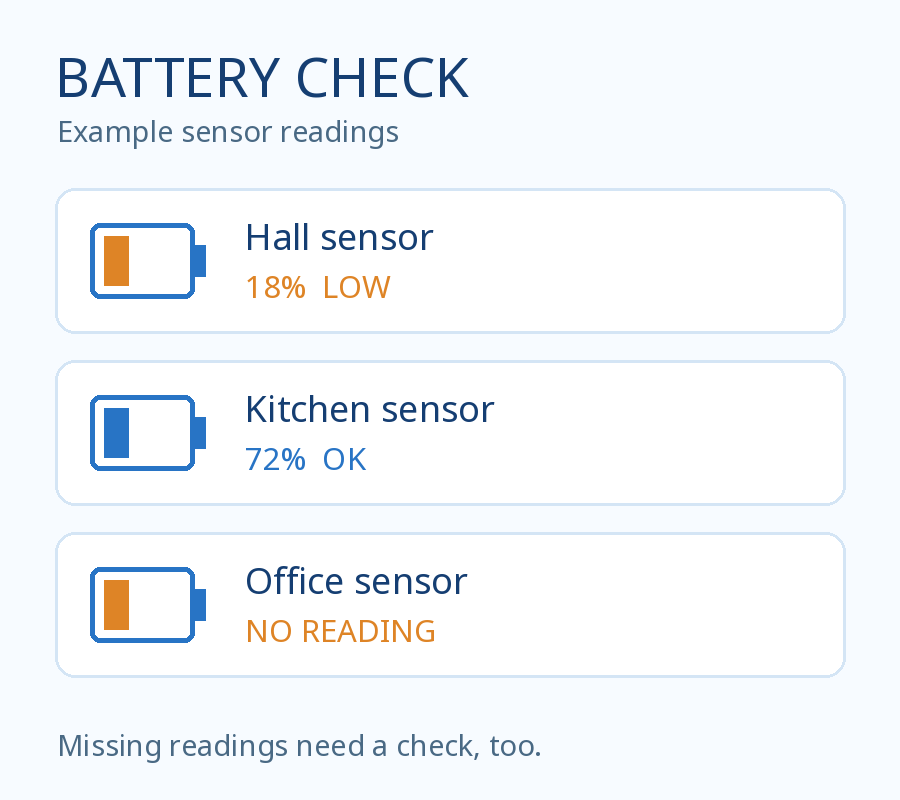
A sensor battery can run low quietly. A dead battery may leave the sensor unavailable altogether, so a dashboard that only shows low percentages can miss the device you need to check most.
Here is a small Home Assistant dashboard card for the battery sensors you choose. It lists readings at or below 25%, flags missing or invalid readings, and shows a reassuring message only when every selected sensor has a valid reading above the threshold. The example uses fictional sensor names.
What you need
Home Assistant with an editable dashboard and numeric battery percentage sensor entities. This guide uses the built-in Markdown card and follows the Home Assistant 2026.11 documentation; it needs no custom card or HACS. Sensors that expose only a low-battery on/off flag need a different approach. You will need to choose the entities yourself, so the card does not silently include a phone or an unrelated battery.
1. Find your battery entities
Go to Developer tools → States and search for your devices. Find each battery percentage entity and copy its entity ID, such as sensor.hall_battery. Confirm that the state is a percentage from 0 to 100. Names and IDs in the example are placeholders; yours will be different.
2. Add the card
- Open the dashboard where you want the check, select the edit button, and choose Add card → Markdown. For a dashboard managed automatically by Home Assistant, taking control means it will no longer update itself automatically; use an existing editable dashboard if you want to avoid that change.
- Open the card’s code editor and replace its configuration with the complete YAML below.
- Replace each of the three example entity IDs inside
batterieswith your own, keeping the quotes and commas. Add or remove list entries as needed, but keep at least one. Changethreshold = 25if you want a different cutoff. - Save the card, then save or exit dashboard editing. The card updates as its selected entity states change.
|
1 2 3 4 5 6 7 8 9 10 11 12 13 14 15 16 17 18 19 20 21 22 23 24 25 26 |
type: markdown title: Battery check content: | {% set batteries = [ 'sensor.hall_battery', 'sensor.kitchen_battery', 'sensor.office_battery' ] %} {% set threshold = 25 %} {% set result = namespace(issues=0) %} {% for entity in batteries %} {% set reading = states(entity) | float(-1) %} {% if reading != reading or 0 > reading or reading > 100 %} {% set result.issues = result.issues + 1 %} - **{{ state_attr(entity, 'friendly_name') or entity }}:** no valid reading ({{ states(entity) }}) {% elif threshold >= reading %} {% set result.issues = result.issues + 1 %} - **{{ state_attr(entity, 'friendly_name') or entity }}:** {{ reading | round(0) }}% — low {% endif %} {% endfor %} {% if batteries | count == 0 %} Add at least one battery entity to the list. {% elif result.issues == 0 %} All selected batteries report above {{ threshold }}%. {% endif %} |
Why an explicit list? It keeps the check focused on devices you care about, and makes a typo visible as a missing reading instead of quietly dropping it. The list is a maintenance task: add a new battery entity when you add a device.
3. Check that it works
- Compare each selected entity with Developer tools → States. A reading at or below the threshold should appear as low; one above it should not.
- Temporarily change the threshold in the card to a number above one known reading. Save and confirm that sensor appears, then restore your preferred threshold.
- To check the missing-data path safely, temporarily add a fictional ID such as
sensor.example_battery_missing. It should show “no valid reading”; remove the fictional entry afterward. - If all selected readings are valid and above the threshold, the card says so. Reload the dashboard and confirm the list still matches the entity states.
If something looks wrong
- Missing or invalid reading: check the entity ID and its state in Developer tools. Unknown, unavailable, nonnumeric and out-of-range states are flagged; an unavailable entity is not proof that its battery is empty.
- Device is missing from the card: add its battery entity to the list. A device without a numeric percentage entity cannot be evaluated by this card.
- Nothing changes: check the ID and save the card again. If automatic dependency tracking misses an entity, the Markdown card documentation describes the optional
entity_idupdate list.
Battery percentages are estimates and may be old even when they look valid. This card does not detect stale normal values, send notifications, or work while Home Assistant is down. Use the device’s own warnings for critical equipment. To remove the check, edit the dashboard and delete the card; no sensor or automation is changed.
I checked the YAML and template with fictional readings, including low, normal, missing, and unavailable values. I have not loaded this exact card into a Home Assistant runtime; verify it with your own entities as described above.
For a different problem—an important sensor becoming unavailable—see the sensor availability guide.
References: Home Assistant Markdown card, working with states, and template debugging.