When two robots share a home, their separate maps make it awkward to answer a simple question: where did each one go during this round of cleaning? A shared dashboard puts their reported positions and routes on one familiar plan, with a different color for each robot.
This guide supplies a complete custom card, an alignment tool, a session helper, and a fictional example plan. You align each robot once, press New map session before a cleaning round, and use your normal robot controls. The latest reported route from each participating robot remains visible after docking.
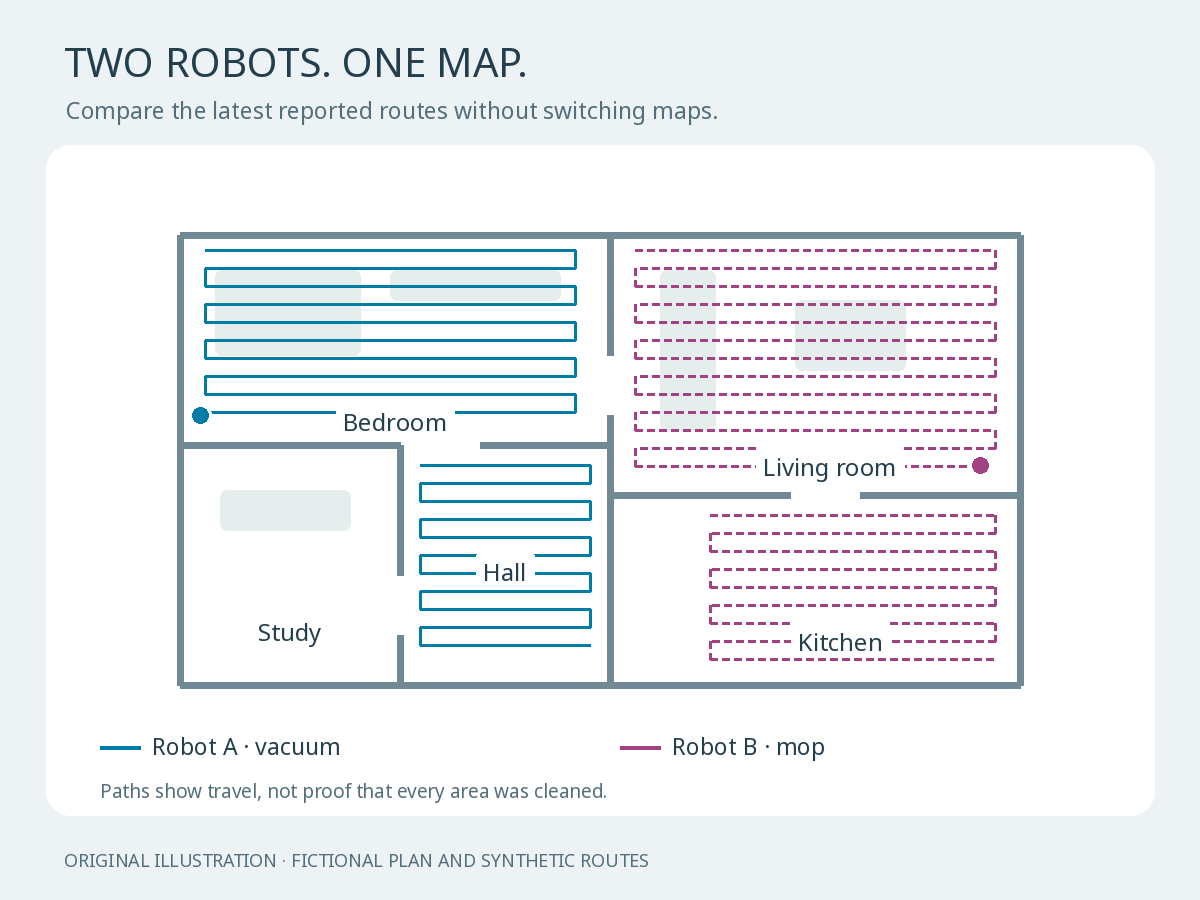
Original illustration using a fictional floor plan and synthetic routes. These are travel paths, not proof of cleaned coverage.
Why combine maps?
One robot might vacuum the bedrooms while another mops the living area. Two separate views can use different orientations, origins and room divisions. Overlaying them on one plan makes it easier to see which robot participated, compare the reported paths, and notice a missing route without switching dashboards.
This does not make robots share navigation, divide work, avoid each other, or improve their own maps. They continue working independently. A line shows where the integration reports that a robot traveled; it does not certify that the floor underneath was cleaned.
Check compatibility first
This implementation is specifically for two to four robots exposed by Tasshack's Dreame Vacuum integration. The underlying household project used a Dreame L20 and X60. The downloadable version is generalized and uses fictional data throughout.
You need:
- Home Assistant with configuration-file access and a dashboard you can edit. Home Assistant OS and Container installations can both supply the required files; the location of your mounted configuration directory may differ.
- Each robot already showing a live map and cleaning history through that integration. Follow its installation and model requirements first.
- The exact vacuum, live map camera, and cleaning-history sensor entity IDs for each robot.
- A simple plan of your own home, prepared on a 1000 × 600 canvas. Accurate wall corners matter more than decorative furniture. Add margins to preserve the shape; do not stretch a plan to fit.
A camera screenshot alone is insufficient: the card needs structured coordinates and paths. This package does not include adapters for Roborock, other integrations, or arbitrary brands.
Validation: the current stable reference checked on 25 October 2026 was Home Assistant 2026.10.4. The Dreame source reviewed reports integration v2.0.2. The new package passed synthetic logic and browser checks; it was not installed into a clean Home Assistant runtime or tested with physical robots. Treat it as an experimental custom project and run the verification steps below. No changes were made to the household reference installation.
1. Get the complete files
Download Shared Vacuum Map 1.0.0.
The package includes the full JavaScript card, generic SVG plan, complete session package, two dashboard card examples, local demo, test fixtures, tests, illustrations and installation README. There is no missing server component, API key, paid service or separate card framework to add.
For a safe first look, extract the ZIP and run:
|
1 |
python3 preview.py |
Open http://127.0.0.1:8000/shared-vacuum-map-v1/demo.html. This is a local synthetic demo; it never connects to Home Assistant or robots. Its buttons simulate active, paused, offline, completed and empty-session states. Stop the preview with Ctrl+C. Optional code checks run with node tests.mjs if you have Node.js.
The demo uses the supplied fictional plan. Your real installation needs your own plan: calibration can rotate, scale and position a map, but cannot turn an unrelated apartment drawing into your home.
2. Add the files and session helper
Back up your configuration, then create /config/www/shared-vacuum-map/. Copy these files there:
|
1 2 |
shared-vacuum-map.js generic-plan.svg |
Use generic-plan.svg for practice. Replace it with your own 1000 × 600 SVG or PNG when setting up your home, and adjust the dashboard's plan: path if its filename changes.
In the downloaded shared_vacuum_map.yaml, replace vacuum.robot_a and vacuum.robot_b with your two real vacuum entity IDs. Copy it to /config/packages/shared_vacuum_map.yaml.
If you do not already load packages, merge this into your existing homeassistant: section in configuration.yaml:
|
1 2 |
homeassistant: packages: !include_dir_named packages |
Do not create a second homeassistant: key. If you already use packages, add this file through that arrangement. Home Assistant's package documentation explains how the files are combined.
Run Developer tools → YAML → Check configuration. Fix errors before restarting, then restart once to load the helper and script.
The package creates input_text.shared_vacuum_session and script.shared_vacuum_new_session. The script records the session's start time; it sends no cleaning or docking commands. It refuses to clear the session if any configured vacuum is unavailable, active, or not idle/docked. The helper has no initial value, so Home Assistant can restore its saved value after a restart.
Privacy: files in /config/www are served through /local and can be accessible without authentication to clients that can reach your Home Assistant server. Use a schematic and keep credentials, private photos and sensitive details out of that folder. This project does not require exposing Home Assistant to the internet.
3. Add the dashboard cards
Under Settings → Dashboards → the top-right menu → Resources, add:
|
1 |
/local/shared-vacuum-map/shared-vacuum-map.js?v=1.0.0 |
Choose JavaScript Module, then reload your browser page. If Resources is hidden, enable Advanced mode in your profile. A YAML-managed dashboard can instead use the resource configuration in the official dashboard documentation.
Open dashboard.yaml from the package. It contains two separate card configurations divided by ---. Add each to its own Manual card; do not paste the separator into either editor.
The first adds New map session. In the second, replace the six entity IDs: each robot needs its vacuum, live map camera, and cleaning-history sensor. Find them under Settings → Devices & services → Entities, filtering by the robot's device/integration. Enable the history sensor if it is disabled. Use the live _map camera, not a saved-floor camera or a _map_data camera.
Initially each robot says Alignment needed. That is expected.
4. Align each robot once
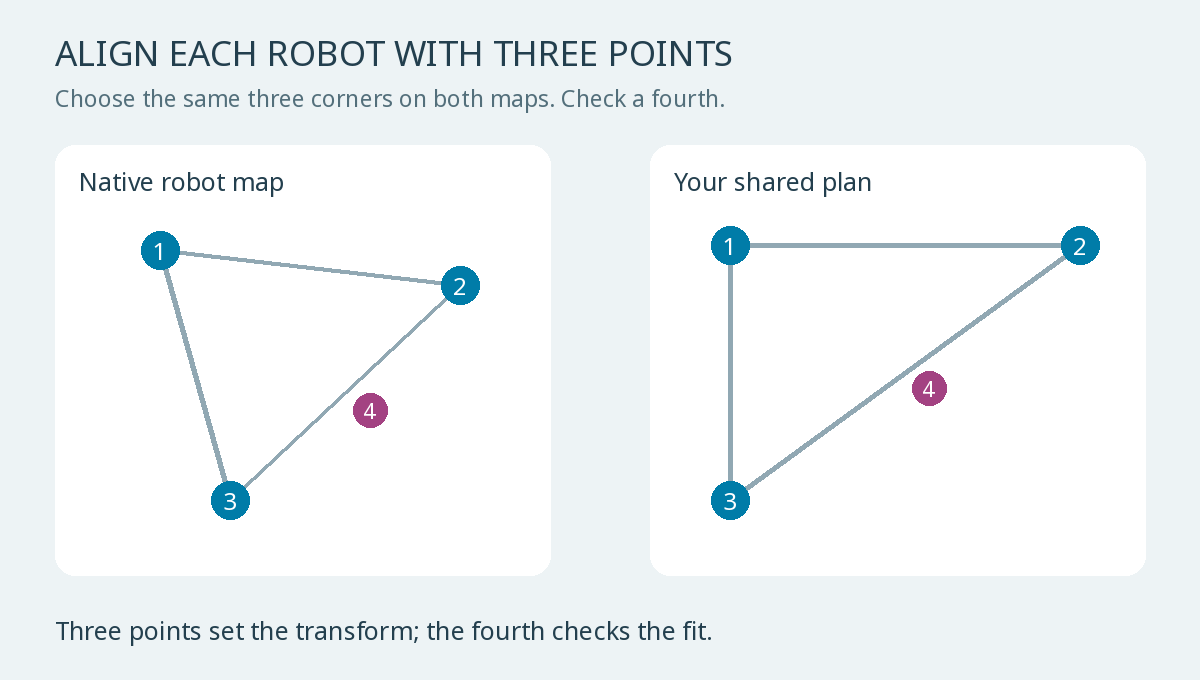
Original schematic. Each numbered point represents the same physical corner in both views.
Select Align maps and choose Robot A. The tool shows its native map beside your plan.
- Click a distinctive corner on the native map.
- Click the same corner on your plan.
- Repeat at two more corners, spread across the home. Do not choose three points along one straight wall.
- Copy the generated
map_idandcalibrationinto Robot A's YAML, at the same indentation ascolor:. - Pick a fourth matching corner. The displayed error checks the alignment; aim for under 10 pixels on the 1000-pixel-wide plan. If it is larger, clear the pairs and choose better corners or correct the drawing.
- Repeat for Robot B, then save the dashboard card.
Each robot needs its own calibration. Do not copy Robot A's coordinates to Robot B, or copy the sample numbers into your real home. The tool handles rotation, reflection and scale automatically; the point choices supply the correspondence. It does not merge room IDs or change a robot's map.
The point selections stay in the current browser tab only until you copy and save the YAML. After a remap, floor change, replacement robot, or changed drawing, align it again. The card blocks routes when the reported saved-map ID differs from the configured one, but an ID reused by a remap still needs a manual check.
5. Start a round and verify the result
With both robots idle or docked, press New map session once. Then start your normal cleaning jobs using your usual controls. The map itself does not start them.
Verify these outcomes:
- Run a normal small job on A: its reported route uses A's color. A robot that has not run since the session began has no session route.
- Run B: its own color appears in the matching part of the same plan. Solid lines represent reported vacuum paths; dashed lines represent mop or combined paths.
- Pause an active job: its existing path stays available.
- After docking, allow cleaning history to update, then refresh the dashboard. The latest saved routes should return from the integration's history.
- Start a new session while both robots are idle: the old paths disappear. A robot that stays docked must not acquire a new route.
The session has a deliberate, simple rule: show each robot's current reported route, or its latest saved run that started after the session began. A second job by the same robot replaces that robot's earlier saved job in the session. Paths are not accumulated forever or automatically cleared at midnight.
Saved history makes reconstruction possible after a browser refresh or Home Assistant restart. It is not a separate backup system. If the integration never supplies a saved route, or that history is deleted, the card cannot restore it.
If something looks wrong
No card: check the resource URL and JavaScript Module type, then refresh. Do not register the same resource twice.
No map or a 404: check the live camera entity and integration. This card uses custom Dreame endpoints, not a general Home Assistant map API. Their source is linked below; an integration update can change them.
No route after docking: check that the session began before the job and the cleaning-history sensor is enabled. Cloud history can be delayed. During that delay an earlier saved run in the same session may remain visible; any retained in-memory route is only last-known data. Open Map status for the current diagnostic.
Route in the wrong place: redo calibration using widely separated corners, check the plan's proportions and saved-map ID, and verify the fourth point.
Offline or stale robot: the card labels the entity state and time since a successful fetch. A fresh HTTP response is not proof that the robot's map is fresh: the map JSON does not include an acquisition timestamp. Positions remain last-reported positions. The card reads again every 15 seconds while open and bounds each request to 20 seconds.
What was checked, and how to remove it
The package's eight automated checks cover affine alignment, collinear points, timestamp ordering, session filtering, saved-map metrics, invalid paths, malformed pixel runs, and paused/unavailable states. Browser checks exercised both completed routes, live and paused updates, offline labeling, new-session clearing, reconstruction after reopening, the alignment export and fourth-point check. At a 390-pixel viewport the demo had no horizontal page overflow.
These tests use synthetic data. The Home Assistant package was YAML-parsed, but not loaded into a live HA runtime. The custom history endpoint is indexed: the card checks history ordering before/after each request and compares available area/time metrics, but stale results with identical metrics can still be ambiguous. It cannot certify run identity or freshness beyond the data supplied upstream.
To remove the project, remove its two dashboard cards and resource, remove its package, check configuration and restart, then delete its static files. Preserve shared package/resource configuration used elsewhere. Your integrations and vacuum maps stay intact.
The use of a persistent helper follows the same principle as this site's restart-safe timed switch guide: store the fact you need to reconstruct later, instead of depending on a browser staying open.
Technical references: the exact reviewed Dreame camera endpoints, map-data schema, and history sensor. The included README contains the full file list, installation details, session behavior and troubleshooting.